
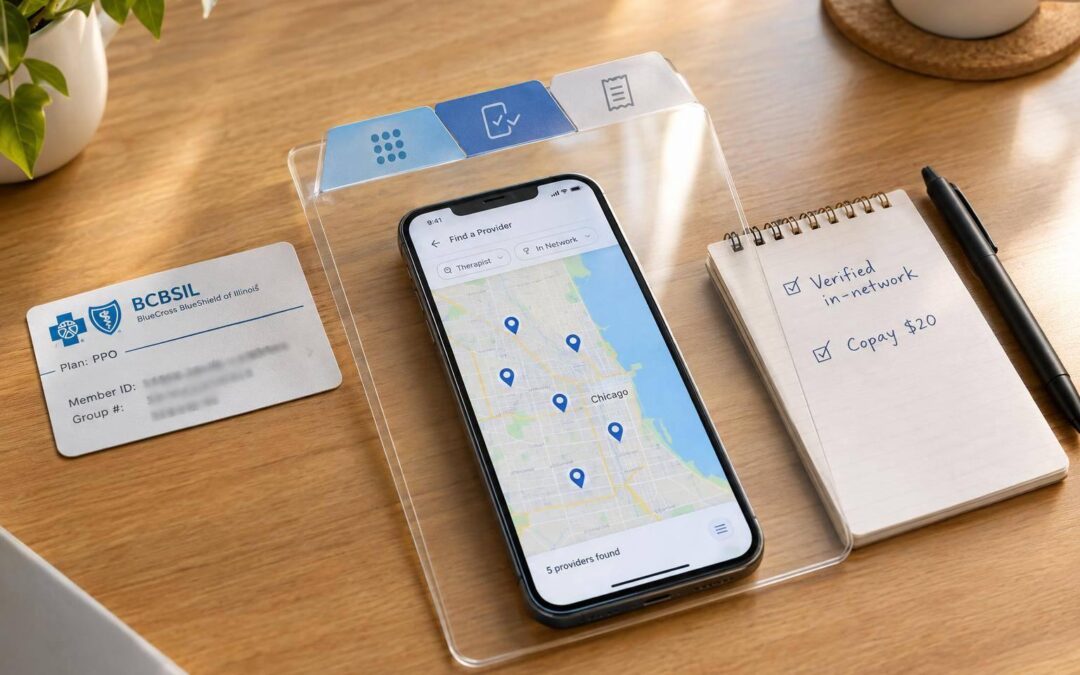
A therapist who accepts BCBSIL may still be out of network for your plan. To check, find your exact network name on your ID card or plan documents, search BCBSIL Provider Finder, and confirm the result with both BCBSIL and the therapist’s billing office.
Use these 4 steps before scheduling:
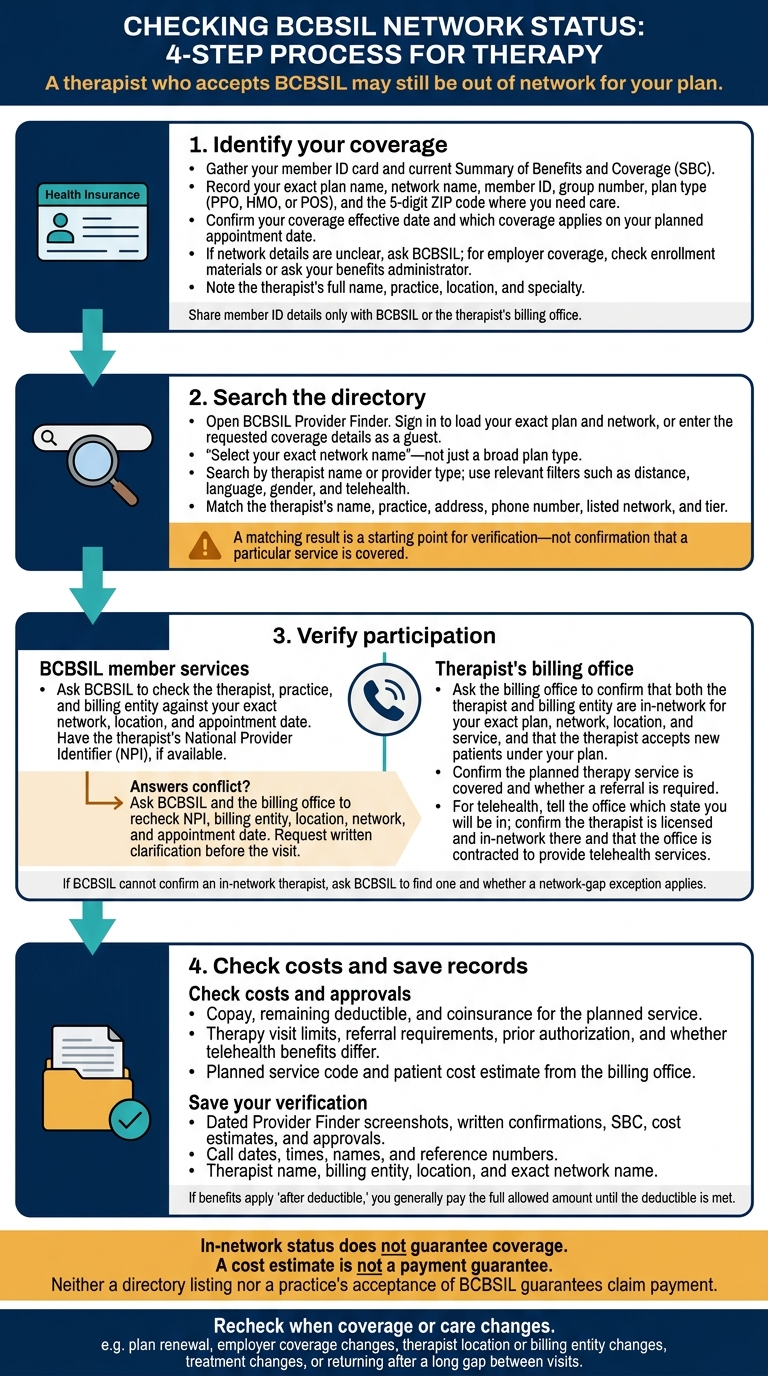
- Identify your coverage: Confirm your plan, network, and coverage effective date.
- Search the directory: Match the therapist’s name, practice, location, and network.
- Verify participation: Confirm the therapist and billing entity are in-network for the planned service, including telehealth.
- Check costs and save records: Ask about your deductible, copay, coinsurance, referrals, and prior approval. Keep dated screenshots and call reference numbers.
In-network does not mean every service is covered. Recheck when your coverage or care changes. If answers conflict, ask BCBSIL to resolve them before the visit.
Check Your BCBSIL Therapist Network in 4 Steps
Step 1: Find Your BCBSIL Plan and Network
Gather Plan and Therapist Details
Have your member ID card and current Summary of Benefits and Coverage (SBC) ready so you can confirm your exact plan name and benefits.
Write down your plan name, network name, member ID, group number, plan type (PPO, HMO, or POS), and the 5-digit ZIP code where you need care.
Check the network code in your plan materials. If it’s missing or unclear, call the BCBSIL number on your card or use Provider Finder to confirm your network.
Already have a therapist in mind? Note their full name, practice, location, and specialty. Share member ID details only with BCBSIL or the therapist’s billing office.
Check Employer Coverage and Effective Dates
If you have employer-sponsored coverage, check your enrollment materials. Ask your benefits administrator for any missing network details - employer plans may use different networks than individual plans.
Record your coverage effective date, especially if you’re switching plans. Network access can vary by plan and coverage date, so confirm which coverage applies on the date you expect to receive care. This helps you avoid checking the wrong network or coverage period.
Use these details to search BCBSIL Provider Finder in Step 2.
sbb-itb-a729c26
Step 2: Search BCBSIL Provider Finder
Open Provider Finder on the BCBSIL website using the plan and network details from Step 1. Sign in to load your exact plan and network.
If you’re searching as a guest, enter the requested coverage details and the ZIP code where you want therapy. Select your exact network name, not just a broad plan type, then choose the relevant behavioral health category.
Search by Therapist Name or Specialty
Search by therapist name or provider type. Narrow the results with available filters for distance, language, gender, and telehealth.
For remote care, use the telehealth filter. Then confirm that the office is contracted to provide telehealth services.
Match the Practice, Location, and Network
Open the provider’s listing and match the name, practice, address, and phone number to the therapist’s details. Check the listed network and tier, rather than relying on a statement that the provider accepts BCBSIL. Participation can vary by office location or billing entity.
A matching result is a starting point for verification - not confirmation that a particular service is covered. Next, verify the details directly with BCBSIL and the therapist’s billing office.
Step 3: Verify Participation With BCBSIL and the Therapist
Ask BCBSIL to Verify the Therapist and Service
Once you find a likely match in Provider Finder, check directly with both BCBSIL and the billing office.
Before scheduling, call the member services number on your BCBSIL ID card. Have your member ID, group number, therapist’s name, National Provider Identifier (NPI), location, and appointment date ready. Ask BCBSIL to check the therapist, practice, and billing entity against your exact network. If available, the NPI helps identify the correct provider.
Also ask whether your therapy service is covered. In-network status does not guarantee coverage. Check whether your plan requires a referral, too. PPO plans generally don’t require a PCP referral, but you should check the requirements for HMO and POS plans.
Confirm Network Details With the Billing Office
Ask the billing office whether both the therapist and billing entity are in-network for your exact plan, network, location, and service. A practice saying it accepts your insurance isn’t enough. Also confirm that the therapist accepts new patients under your plan.
For telehealth, tell the office which state you’ll be in during sessions. Confirm that the therapist is licensed and in-network there.
Resolve Conflicting Network Answers
If you get conflicting answers, ask BCBSIL and the billing office to recheck the clinician’s NPI, billing entity, location, network, and appointment date. Request written clarification. Neither a directory listing nor a practice’s acceptance of BCBSIL guarantees claim payment.
If the directory and carrier still disagree and BCBSIL can’t confirm an in-network therapist, ask BCBSIL to find one. Also ask whether a network-gap exception applies so you can receive out-of-network care at in-network cost sharing.
Step 4: Check Costs and Keep Verification Records
Once you confirm the therapist is in-network, check what you’ll pay and save proof of each check.
Check Therapy Costs and Required Approvals
Confirm your copay, remaining deductible, and coinsurance for your exact plan and planned therapy service. If your benefit says “after deductible,” you generally pay the full allowed amount until you meet that deductible.
Check your SBC for therapy visit limits and prior authorization requirements. Ask BCBSIL whether you need a referral and whether telehealth benefits differ. Get the planned service code and a patient cost estimate from the billing office.
A cost estimate is not a payment guarantee. Your final share may depend on the service billed, the negotiated allowed amount, and your deductible balance when the claim is processed.
Save Directory Results and Confirmation Details
Keep all verification records in one place: dated Provider Finder screenshots, written confirmations, your SBC, cost estimates, and approvals. Save a call log with dates, times, names, and reference numbers. Include the therapist’s name, billing entity, location, and exact network name.
Recheck eligibility, benefits, and network status whenever your plan, therapist, or treatment changes. Use your saved records if you need a denial review or appeal.
Conclusion: Recheck Your Network When Coverage or Care Changes
Check your exact BCBSIL network, then confirm the therapist’s network status with both BCBSIL and the billing office. Check again when your plan renews, your employer coverage changes, the therapist moves or switches billing entities, or you return after a long gap between visits.
FAQs
What if my therapist leaves my BCBSIL network mid-treatment?
If your therapist becomes out-of-network, confirm their status with both their office and BCBSIL. Network participation can change.
Staying with your therapist typically means paying more out of pocket. PPO and POS plans may cover some out-of-network care, but usually at a higher cost to you. HMOs generally cover only in-network care, except in emergencies. To keep costs lower, you may need to switch to an in-network therapist.
Can I appeal a denial based on incorrect directory information?
Yes. Check your exact plan and network name in the BCBSIL provider directory. Then confirm with both BCBSIL and the provider that the therapist is in-network for your specific plan.
If the directory listing or confirmation shows that the therapist’s services should have been covered, use that documentation to challenge the denial. Your exact plan and network matter because provider participation can change.
How do I request a BCBSIL network-gap exception?
The provided materials don’t explain how to request a BCBSIL network-gap exception. Contact BCBSIL directly for guidance on network adequacy or coverage exceptions.
To check therapist availability, search the official BCBSIL Provider Finder with your exact plan and network name. Then confirm network participation with both BCBSIL and the therapist. Illinois Health Agents also offers personalized help with insurance plans and carrier networks.
Recent Comments